Preparing this in your language — reload in a moment.
Find your way around
PageDuo is laid out like a file drive. A narrow strip down the left holds the few places you go, and whatever you open fills the big sheet beside it.
- Start from the strip down the left
At the top is your workspace. Under it, Tạo starts anything new. Then come the three places you work in: Trò chuyện, Tệp and Dữ liệu.

The strip: your workspace, Create, then Chat, Files and Data.v2026-10-11 - Make anything new from Create
One menu for everything: Nói với AI bạn cần gì first, then the kinds you can start yourself — a document, a presentation, a form, an image — then folders and uploads.
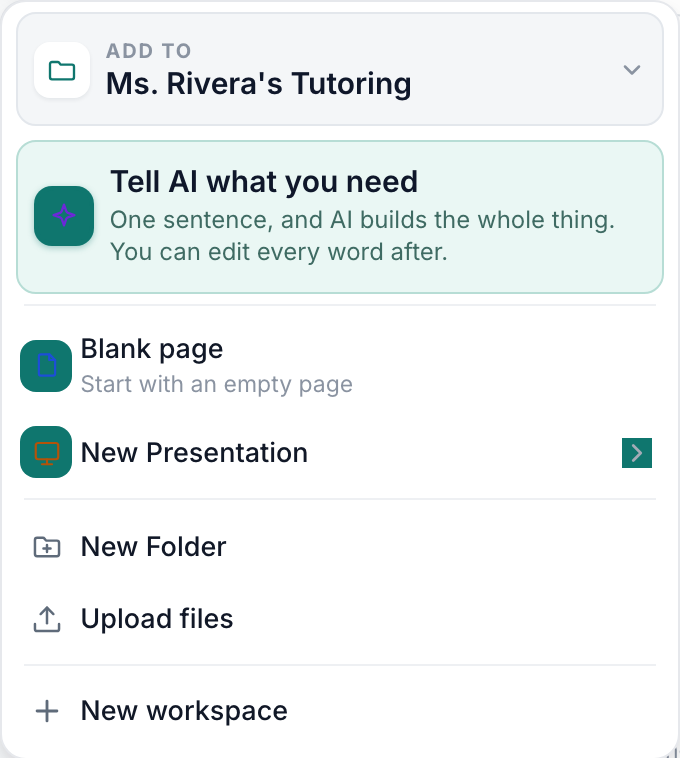
The Create menu — the AI door first, then the kinds, then folders and uploads.v2026-10-11 - Keep your work in Files
Folders and pages, as cards or as a list. The tabs along the top narrow it down: Tất cả tệp, Chia sẻ với tôi, Có gắn sao, Đã đăng and Thùng rác.

Files sorts itself into All files, Shared with me, Starred, Published and Trash.v2026-10-11 - Ask in Chat
Ask a question, or ask it to make a quiz, slides or a page. Make something in Chat covers it.

Chat is in the strip, under Create.v2026-10-11 - Find answers in Data
Every response to every quiz and form in the workspace, in one place, with visits to your published pages beside it.
- Search from the top of the window
Tìm tệp của bạn finds a page by its name or by the words in it. ⌘K (Ctrl+K on Windows) jumps straight to it.

Search finds a file by its name or its words. ⌘K jumps to it.v2026-10-11 - Open your avatar for the rest
Cài đặt, Gói & Sử dụng, Trợ giúp and Đăng xuất. Help opens the support page in a new tab, so nothing you have open is lost.
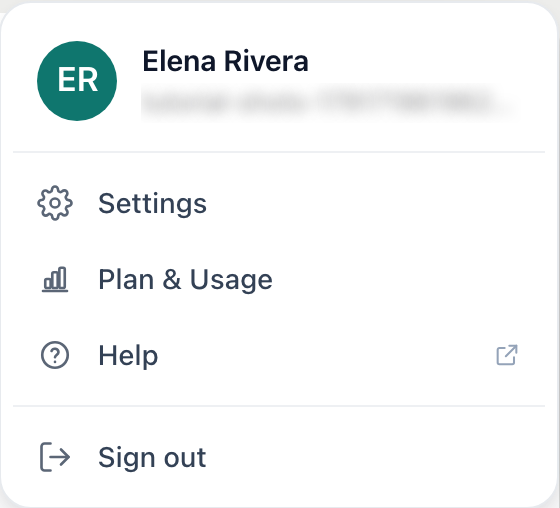
Your avatar: Settings, Plan & Usage, Help, Sign out.v2026-10-11
Every other page in these tutorials starts from this layout, so it is worth two minutes.