Edit with AI
Two different jobs, two different doors. AI Edit in the toolbar works on the whole page. Ask AI, inside the element panel, changes only the thing you pointed at and leaves everything else alone.
- To change the whole page, use AI Edit
It is in the toolbar. Use it for work that spans the page — a new section, a different reading level throughout, a rewrite for a younger class.

AI Edit rewrites what you selected, and nothing else.v2026-09-01 - Say what you want the page to become
The panel takes a plain instruction and a Run AI Agent. "Add a practice section with six questions after the worked example" is the shape that works. Enter starts a new line rather than running it, so you can write several sentences before you commit.
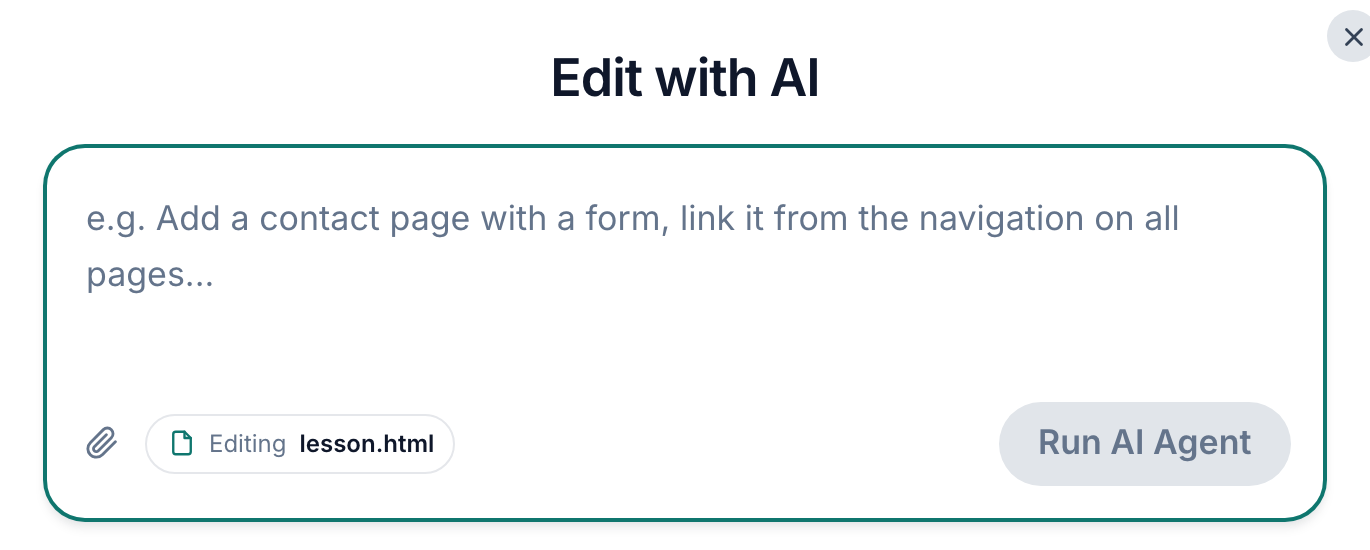
AI Edit in the toolbar talks to the whole page.v2026-09-01 - Check the chip that names what it will change
The panel says which file it is editing. Worth a glance before you run it — it is the difference between changing this page and changing a different one.

The panel names the file it is about to change.v2026-09-01 - To change one thing, right-click it and choose Ask AI
The same panel that holds Format. What you selected is the entire scope — the AI cannot wander into the rest of the page from here.
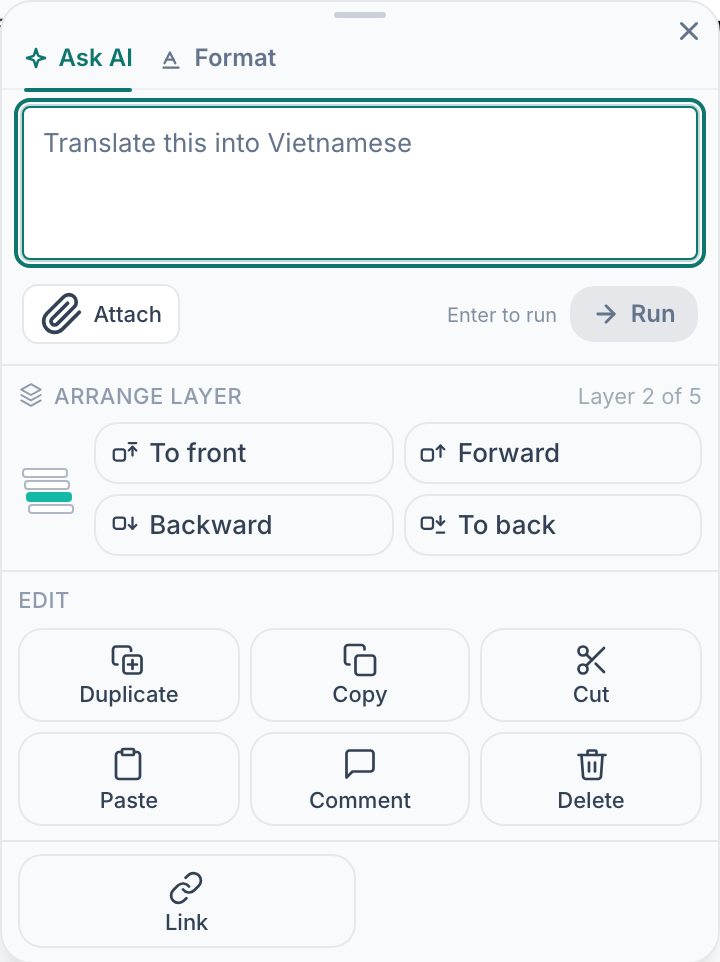
Ask AI, inside the element panel, changes only that element.v2026-09-01 - Ask in plain words
"Add the distribution step between these two lines." Naming the change beats "improve this", which gives the model nothing to aim at.
- Attach something to work from
Attach takes a file — a worksheet, a photo of a textbook page, your own notes — and the AI works from that rather than from its general knowledge.
- Read it before you keep it
The change lands in your page. If it is not right, undo restores exactly what was there.
Undo puts either kind of change back exactly as it was, so both are safe to try.