Edit text by hand
PageDuo has no edit mode to switch into and no ribbon to hunt through. You point at the thing you want to change, and everything that applies to that thing appears where your cursor already is.
- Click the text and type
The element is selected — you get a box around it, an Edit pill, and a handle for dragging it. Click again, or just start typing, to change the words.

Click an element and it is selected — the Edit pill and a drag handle appear on it.v2026-09-01 - Right-click for everything else
One panel, at your cursor, holding every action that applies to the element you pointed at: ask the AI about it, format it, move it up or down the stack, duplicate, copy, cut, paste, comment, delete, or link it.
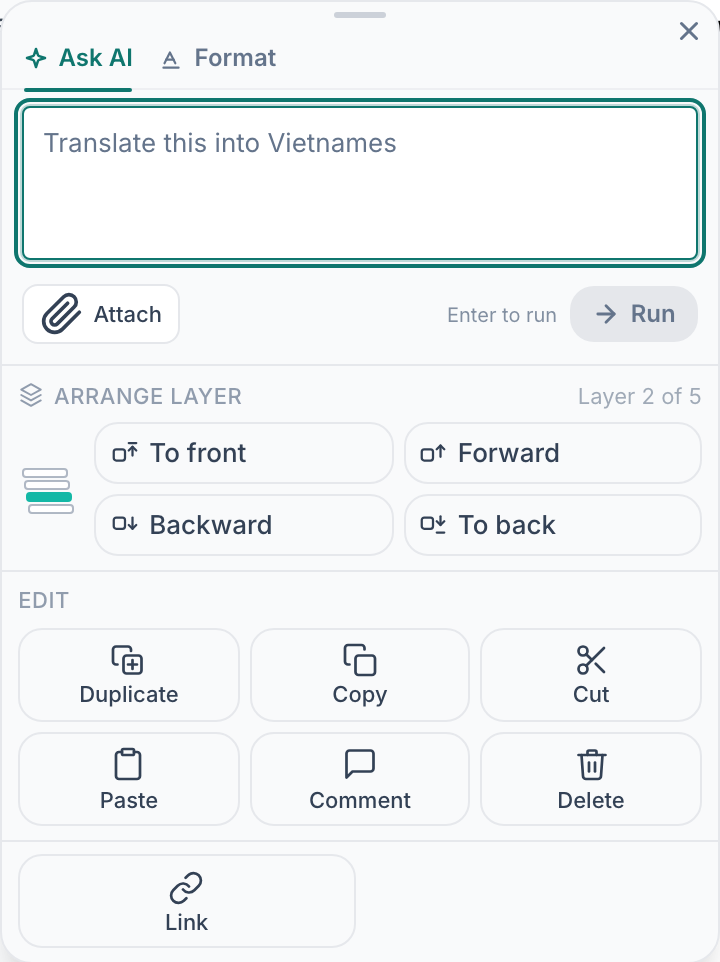
Right-click an element: everything that applies to it, in one panel.v2026-09-01 - Open Format for how it looks
The Format tab covers the everyday typography: font, size, bold, italic, underline, strikethrough, alignment, colour, lists and links — all applied to the selected element. Everything is on screen at once; nothing is hidden behind a "more" toggle.
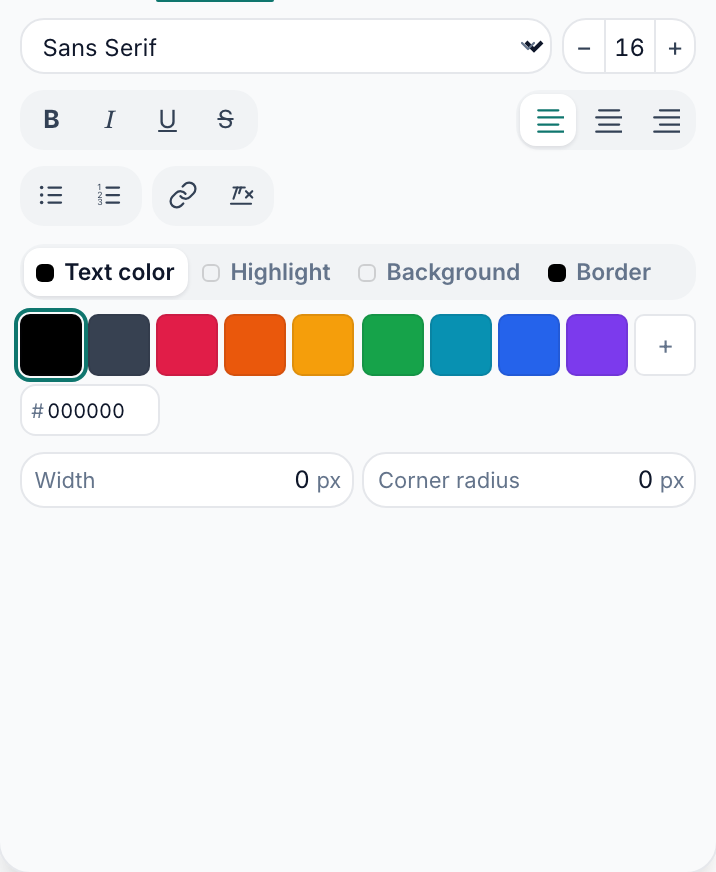
Format — font, size, style, alignment, colour, lists and links.v2026-09-01 - Change the font and its size
Font is the dropdown at the top, with 35 to choose from, grouped by the kind of face they are. Size is the box beside it: type a number, or press − and +.

Font, at the top of the Format tab.v2026-09-01 - Say what a colour should paint
One row of swatches serves four properties, and the switch above it chooses which: Text color, Highlight behind the words, Background for the whole element, or Border.
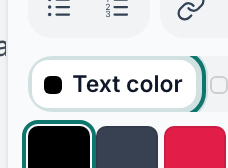
One colour strip; the switch picks what a swatch paints.v2026-09-01 - Then pick the colour
Each mode on the switch carries a dot of its current value, so the panel tells you what colour something already is without being clicked. The hex box below takes an exact value, and the ones you have used stay beside it for the next element.
- Add a link
The link button sits in the row with the lists, and Link is in the panel itself. Select the words first and they become the link text.
Right-click an element: everything that applies to it, in one panel.v2026-09-01 - Box it in
Width and Corner radius sit at the foot of the tab, as numbers you can type. A worked example boxed in a soft border reads as a worked example without a word of explanation.
Format — font, size, style, alignment, colour, lists and links.v2026-09-01 - Fix a mistake
Undo works as it does anywhere. Older versions of the whole page are in its history, so a bad afternoon is recoverable, not just the last keystroke.
- Saving takes care of itself
About a second after you stop typing. There is no Save button to forget.
This is the whole manual-editing surface. Nothing on this page needs the AI.