📘 Story so far — Five of the six questions score themselves; Ms. Rivera wants to know which one the class missed.
Grade multiple choice
Multiple choice is graded on submission against the key. There is nothing to run — this page is about reading the result.
Before you start. A published quiz with at least one answer.
- Open View responses on the quiz
View responses is in the top bar, or beside Present and Exit Preview in fullscreen preview.

View responses, in the top bar.v2026-09-01 - Read the per-question breakdown first
One question much worse than the rest is usually a misconception, not carelessness — that is the one worth reteaching.

The overview: how the class did, at a glance.v2026-09-01 - Check the answer options, not just the letters
The responses view shows what each option said, so "C" means something when you read it.
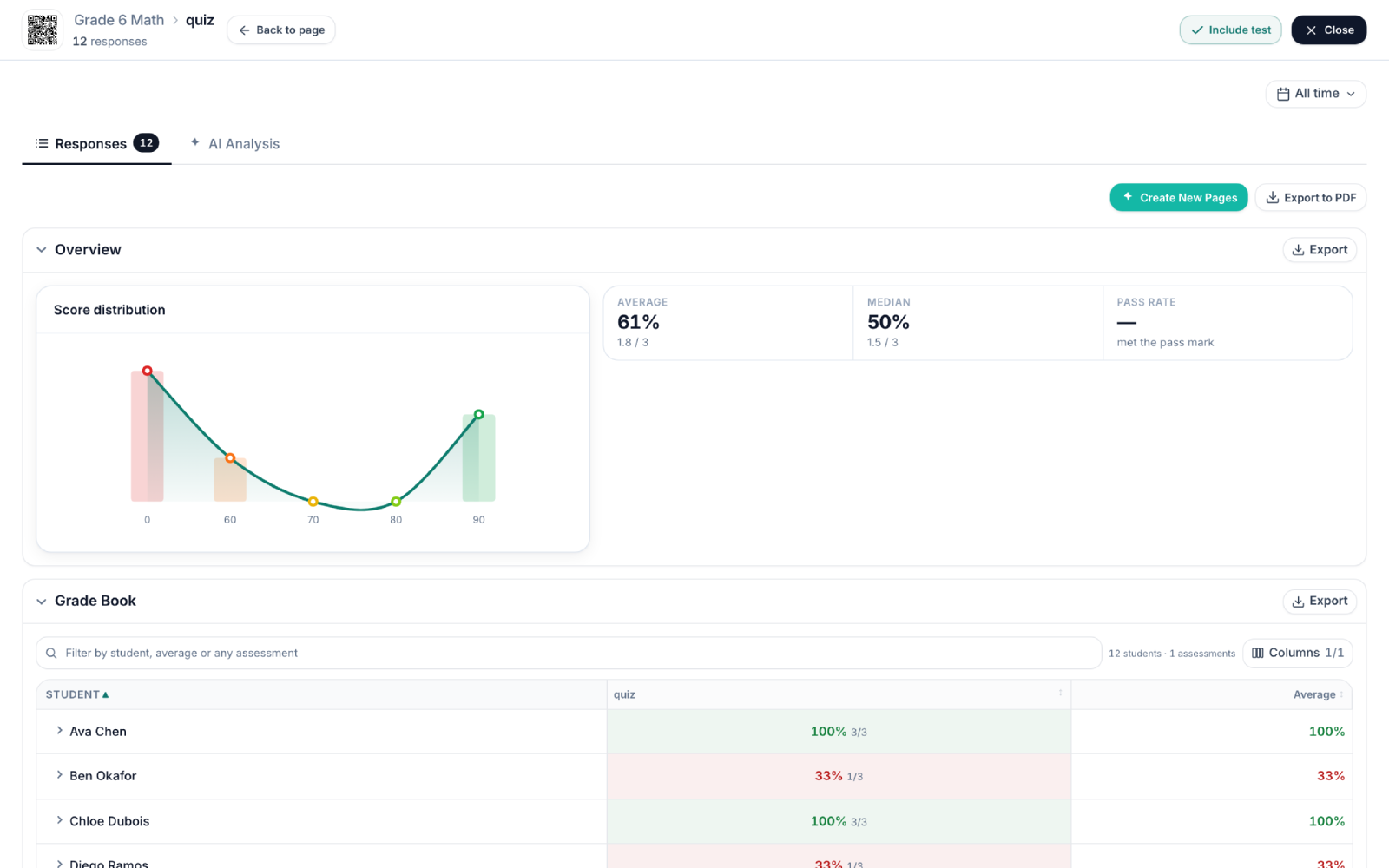
The responses console, with the class in it.v2026-09-01 - Then open the Grade Book
Per student, per question. Useful for who to sit together, and who to see on their own.

The grade book — students down, scores across.v2026-09-01
You'll know it worked. You can name the question the class did worst on, and see who chose what.
Nothing here needs AI or a paid plan.