Export a video, or put it in a page
A video explainer plays in PageDuo as it is. To send it anywhere else, export it as an MP4; to show it inside a lesson, insert it into the page.
- Press Export
Export is in the video's top bar, after Play video. On a narrower window it shrinks to its icon, an arrow leaving a tray.

Export makes an MP4.v2026-10-11 - Choose the shape
Landscape (16:9) for screens and slides, Portrait (9:16) for phones and stories. Captions on the video writes the words into the picture — handy where the sound is off.
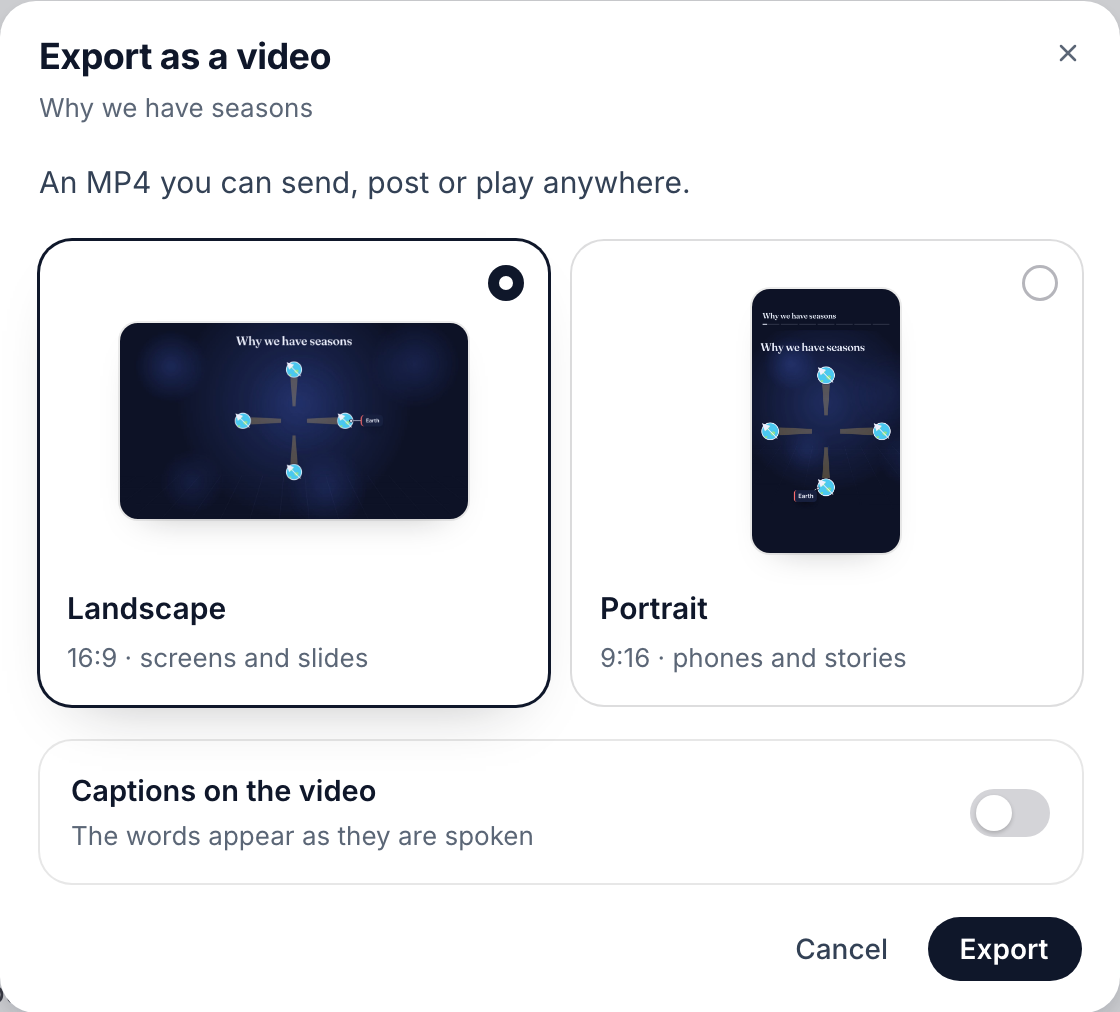
Landscape or Portrait, captions on or off.v2026-10-11 - Press Export, then wait for the download
The sheet shows how long is left while it renders, then downloads the MP4.
- To put it in a lesson, use Insert on the page
Open the page, then Insert ▸ Video explainer. Pick one of your videos, or make one about what you selected, and it lands in the page.
Insert ▸ Video explainer puts one of your videos in a page.v2026-10-11 - Changed the video since?
Select it in the page and press Update video to bring in the new version.
- Publish or share it like a page
Publish puts the video on the web with its narration; Share invites people to work on it with you.
Publishing and sharing a video work exactly as they do for a page — see Publish a page or a site.