📘 Story so far — The cells unit reads well but looks like a wall of text.
Add media and activities
Images, video and interactive activities are inserted the same way — pick the spot, then choose what goes there.
Before you start. A page open in the editor.
- Click where it should go
The insert point is wherever the cursor is.
- Open Insert in the toolbar
Images, video, audio and activities all live under Insert.

Insert — images, video, audio and activities.v2026-09-01 - Search rather than upload, when you can
The image and video pickers search the web from inside PageDuo, so you do not have to find a file first. Your own uploads work too.
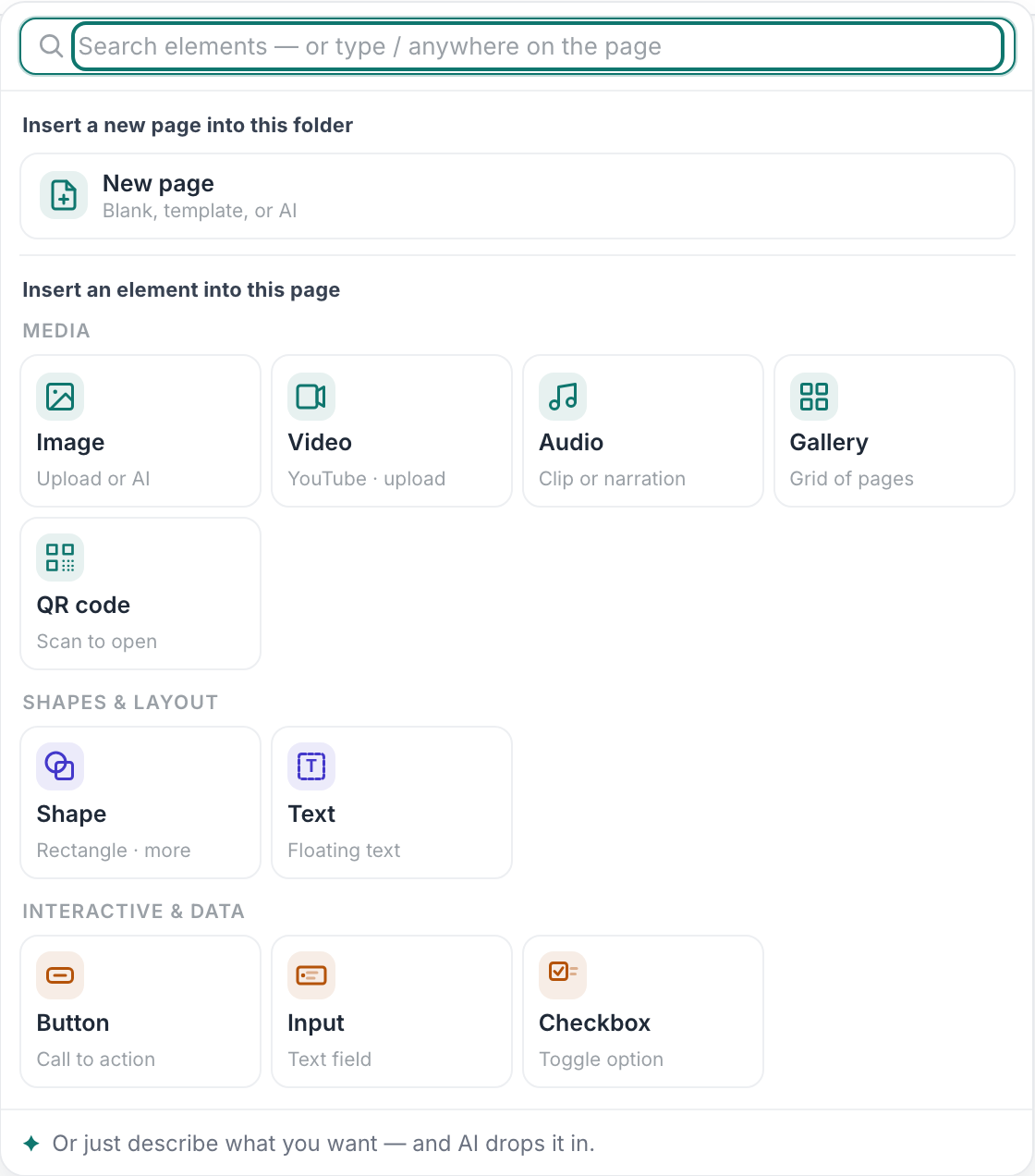
What Insert offers.v2026-09-01 - Look at it in Preview
Preview drops the editing chrome and shows the page the way a reader gets it. Selection outlines and insert points can flatter a layout that reads worse without them.

Preview — see it the way a student will.v2026-09-01 - Showing it to a class? Press Present
Present gives the page the whole screen, with nothing of the app around it.
You'll know it worked. The media sits in the page and stays there when you reload.
Works on any page, generated or written by hand.