Invite people, or join one
Two ways in — email an invitation, or hand out a link that lets anyone who has it join without waiting for you.
- Click the person+ button beside the workspace name
It is in the left rail, next to the settings cog.

The person+ button, right of the workspace name.v2026-09-01 - Two ways in, in one dialog
A link to hand out, and an email invitation. The link is first because it is the common case.
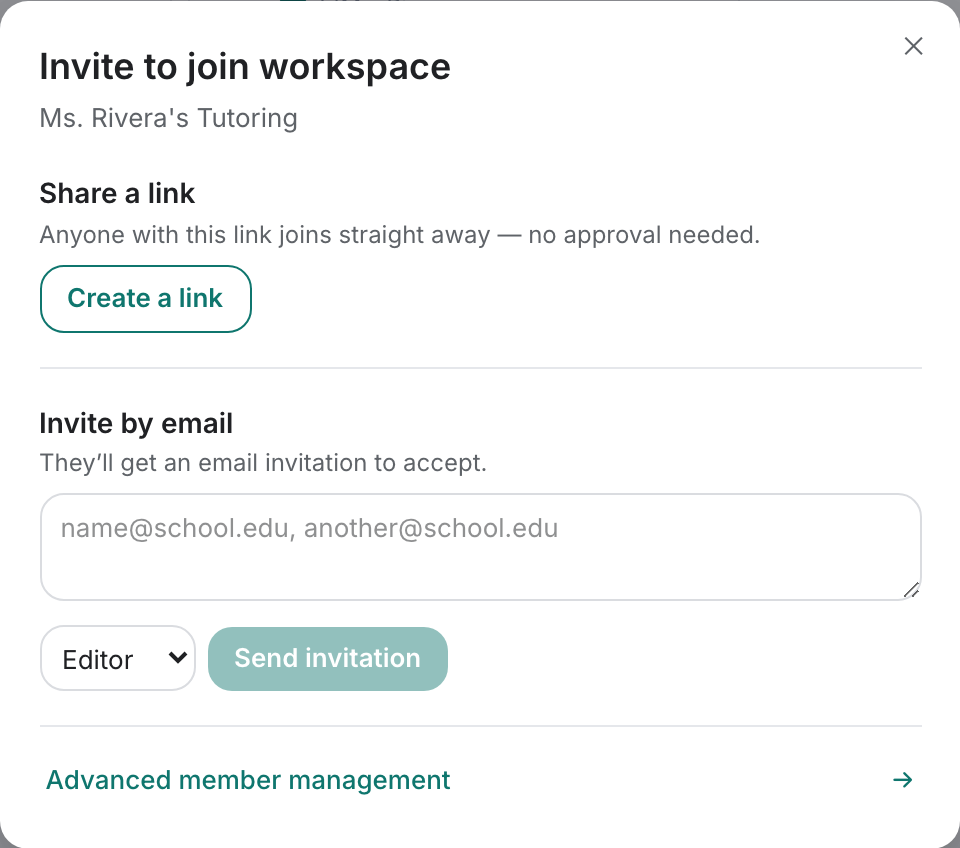
Invite to join workspace — the link first, email underneath.v2026-09-01 - To hand out a link, press Create a link
Create a link mints one. Good for a QR on a handout or a message to a group.
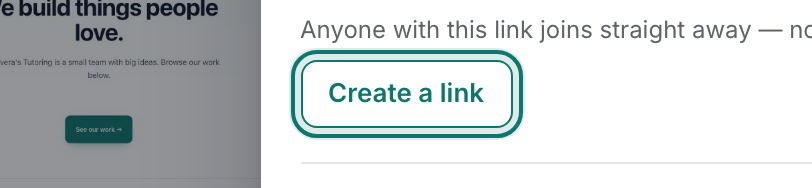
Create a link mints the join code.v2026-09-01 - Read the line under the link before you send it
It tells you which kind of link you have: either anyone who opens it joins straight away, or it waits for your approval first. If it asks for approval and you would rather it did not, Let them join straight away switches that off. Turn off revokes the link entirely — and with it every copy already handed out.
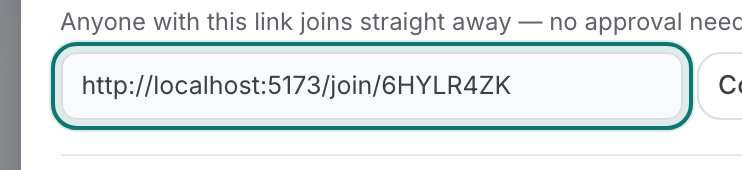
The link, ready to copy — with the line above saying whether it needs your approval.v2026-09-01 - To invite by email, type the addresses
Several at once is fine — comma, semicolon, or one per line. Each person gets an email to accept.
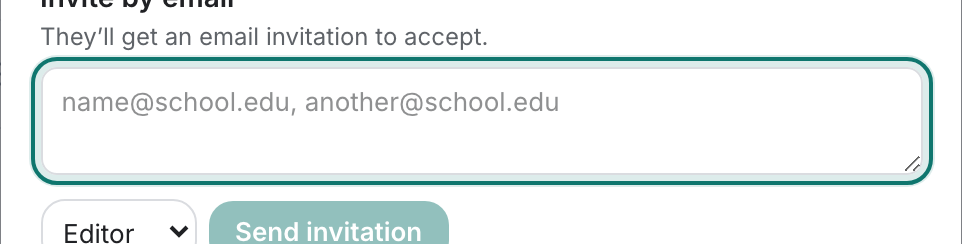
Several addresses at once is fine — comma, semicolon, or one per line.v2026-09-01 - Choose the role before you send
Editor can change pages, Viewer can only read, Admin can also manage members. Pick Viewer for parents and students.

Set the role before you send. Viewer is right for parents and students.v2026-09-01 - Need to remove someone later?
Advanced member management at the bottom opens the full console, where roles change and access is revoked.

Advanced member management opens the full console.v2026-09-01
Been sent a link? Open it and press Join — the rest of this page is for the person doing the inviting.