📘 Story so far — The Expressions unit is ready and Thursday's session is tomorrow.
Publish a page or a site
Publishing turns your pages into a real web address you can hand out. Until you publish, everything you have made is private to your workspace.
Before you start. A page open in the editor.
- Press Publish Site
Publish Site is at the right-hand end of the toolbar.

Publish puts it online and hands you the link.v2026-09-01 - Check what is going live
A page that links to its neighbours publishes as a FOLDER, so those links keep working. The dialog says which it is doing before you commit.
- Choose who can see it
Public on the web, or a private link. The next page covers the difference, which matters more than it sounds.
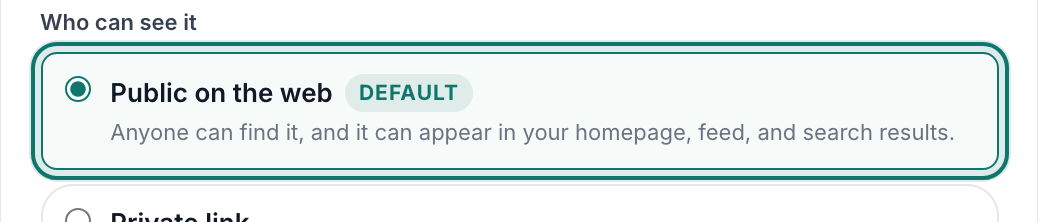
Who can see it — public, or a private link.v2026-09-01 - Publish, and copy the link
That address is what goes in your message to parents, or on the board for students.
- Edited something? Publish again
Changes do not go live on their own. The published copy is a snapshot until you replace it.
You'll know it worked. You get a link that opens the page in any browser, signed in or not.
Publishing again after an edit is the same button — it replaces what is live.