Add a quiz that grades itself
A quiz grades itself the moment it is submitted, and the person sees their result and why at once. It suits a staff training, an exam practice or a lesson — mix multiple choice with one written question to see who understands, not just who remembers.
- At the end of the training, type @quiz
On a new line, @quiz narrows the menu to the quiz; Enter adds it. Or tell @pageduo what you want: "a six-question check on this training: five multiple choice, and one where they explain what they do first."
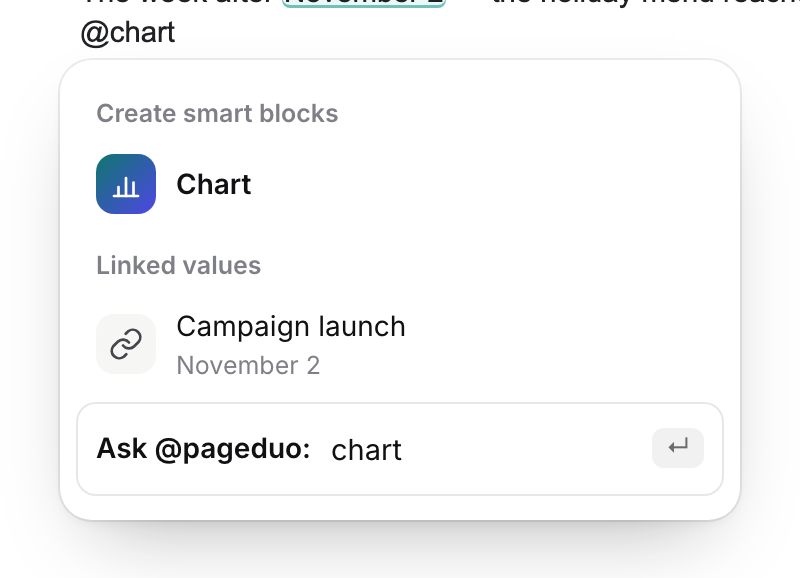
Type @ — then a word to narrow it.v2026-11-18 - Ask for both kinds of question
Multiple choice is scored the moment it is submitted. A written question needs a rubric, which PageDuo writes at the same time as the questions.
- Check the answer key
Read the options marked correct before anyone sees them. This is the cheapest moment to catch a wrong key.
- Publish it
Publish puts it online and gives you the link to hand out. Answers are only collected once it is live.

Publish puts it online and hands you the link.v2026-11-18 - Answer it yourself once
In Preview, answer and submit: your score and the feedback on each answer appear straight away. Then open Responses — if your answer is there, the wiring is right.

Responses, in the top bar.v2026-11-18
A quiz can also be its own page — Create ▸ Dynamic Form, and ask for a quiz.