Preparing this in your language — reload in a moment.
Give a quiz to your class
Give to class puts a short code and a QR code on the board. Students open it on their phones, tap their name from your list and answer — no accounts — and each answer arrives with the right name on it.
- Press Give to class
クラスに配る is in the top bar of any page that collects answers.

Give to class — on any page that collects answers.v2026-10-11 - Make the class once
Type a クラス名 and paste the students, one per line — straight from a spreadsheet or a message is fine. First names are enough. Next time, you just pick the class.
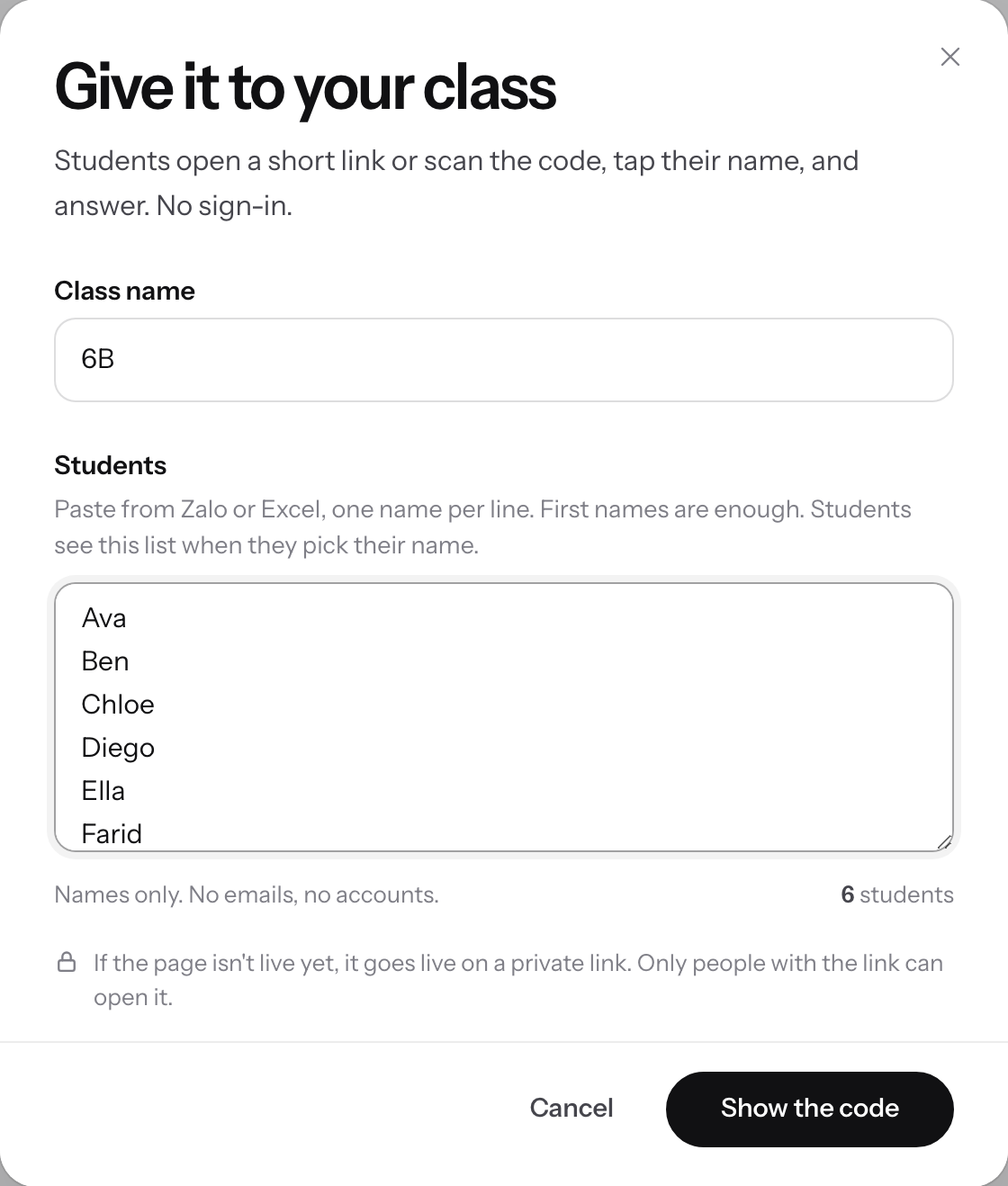
Name the class, paste the students, then Show the code.v2026-10-11 - Press Show the code
A full-screen board shows a QR code and a six-letter code. If the page is not live yet, it goes live on a private link.
- Students scan, tap their name and answer
They scan the QR code, or go to pageduo.ai/a and type the code. The board counts who has joined and who has answered.
- Close answers when time is up
回答を締め切る stops new ones; 回答を再開 lets them in again. 回答した人を表示 lists names on the board only when you choose.
- Read the answers with names
回答 shows each answer under the student who gave it.
Students never need an account, and their names stay off the board unless you choose to show them.