Preparing this in your language — reload in a moment.
Comment, reply and assign
Comments sit in the margin beside the words they are about, so a question stays next to its answer. Reply in the thread, mention a teammate with @, assign it to them, and resolve it when it is done.
- Select the words, then press the comment button
It is in the bar that appears with a selection (⌘⌥M also works). The speech bubble in the top bar, beside Responses, shows or hides every thread.
- Write the comment
What do you think? is the box. The comment is pinned to what you selected, and the panel shows it beside the page.
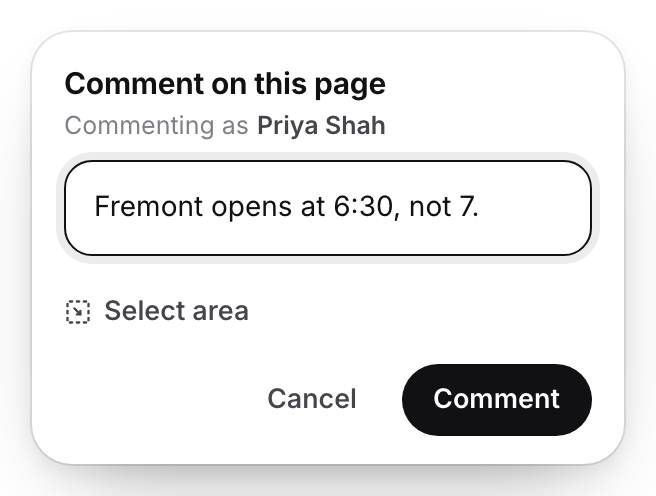
A comment sits beside the words it is about.v2026-11-18 - Mention a teammate with @
Type @ and the start of a name: the list shows the people who can see this page. Picking one notifies them.
- Assign it
Once you mention someone, Assign to appears under the box. They see Assigned to you and press Mark as done when it is handled.
- Reply, then resolve
Reply or ask @pageduo, under each thread, answers in place. Resolve puts a finished thread away; it can be reopened.
Comments made in the editor are only for people with access to the file; comments on a published page are public.