Preparing this in your language — reload in a moment.
Change the template
A template is the whole look — type, spacing, headings, the cover. Changing it never moves a word: a doc keeps its writing and a deck's slides move into the new design.
- In a doc, point at Design
Σχεδίαση is at the foot of the panel on the left, above Προσθήκη καρτέλας. It slides out two choices: Color theme and Templates.
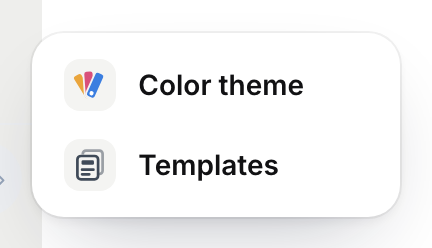
Design — a colour theme, or a whole new template.v2026-11-18 - Choose Templates
Design templates takes over the panel: Modern, the built-in look, then the library's designs, each shown as a whole page. The magnifier searches them.
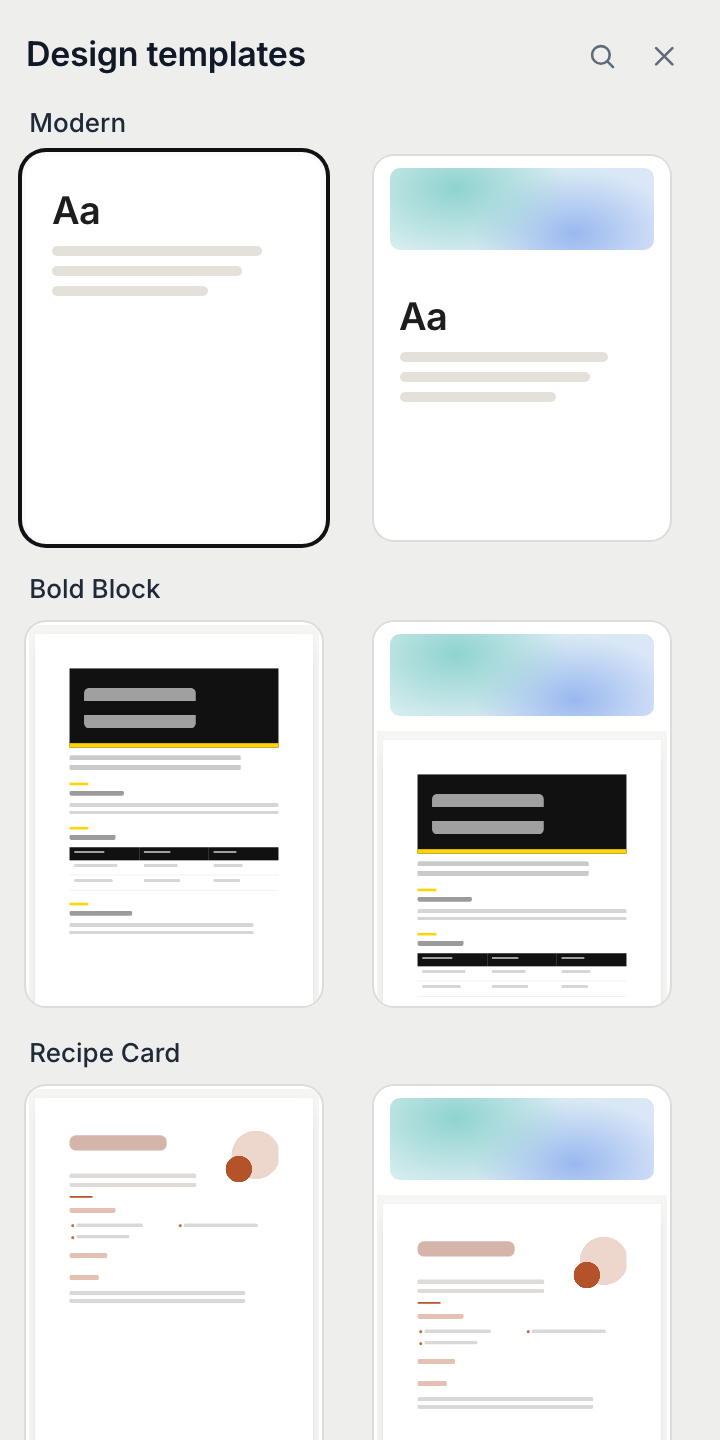
Design templates — a click applies one.v2026-11-18 - Click one to try it
It applies at once and the panel stays open, so trying three designs is three clicks. Cover turns the art band at the top on or off.
- In a deck, press Templates
Templates is under the slide list, beside Θέμα. Each design shows its cover slide; a click moves your slides into it.
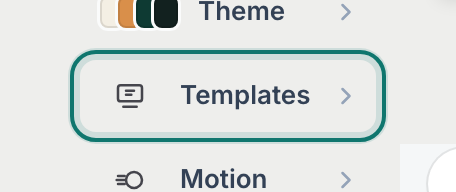
Templates — a new design for every slide.v2026-11-18 - Close the panel when you like it
✕ closes it. Undo puts the last look back.
Only want different colours? See Set a colour theme.