Preparing this in your language — reload in a moment.
Edit text by hand
PageDuo has no edit mode to switch into and no ribbon to hunt through. You click the thing you want to change, and the top bar turns into the tools for that thing.
- Click the text
It is selected — a blue ring around it, an Muokkaa pill above it and a handle for moving it. Click again, or just start typing, to change the words.

Click an element and it is selected.v2026-11-18 - The top bar becomes its tools
While something is selected, the bar at the top holds everything for it: text style and font, size, bold, italic, underline, alignment, colour, layer, duplicate and delete.

While something is selected, the top bar is its tools.v2026-11-18 - Change the font and its size
Aa holds the text style and the font list, each font shown in its own face. The size is the box beside it: type a number, or press − and +.
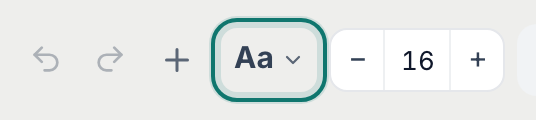
Aa for the font, then the size.v2026-11-18 - Change the font colour
The colour button holds Tekstin väri, the Korostus behind the words, the element's Tausta and its Reunus — with Leveys and Kulman pyöristys for the box around it.
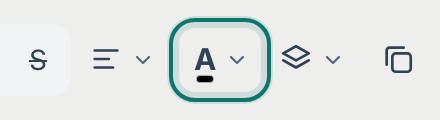
Colour — text, highlight, background and border in one place.v2026-11-18 - Right-click for everything else
A pop-up opens at your cursor: an Ask AI box, and one row of quick actions — duplicate, copy, cut, paste, comment, link and delete.
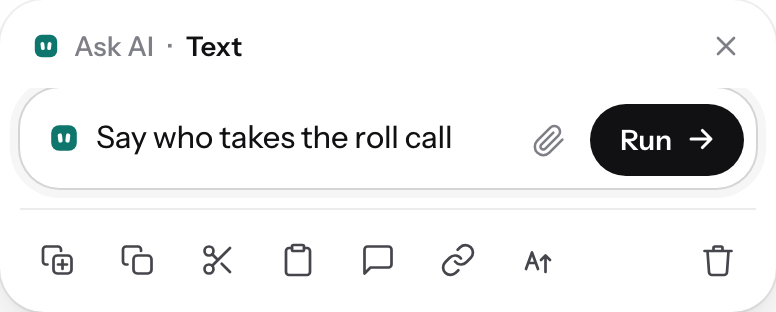
Right-click: ask the AI about this one thing, or act on it.v2026-11-18 - Add a link
Select the words that should become the link, then press the link button in the pop-up and paste the address.
- Select several things at once
The round button at the bottom right of the page draws a box: everything inside it is selected, and the bar acts on all of them together.
- Press Done editing when you finish
Valmis muokkaaminen, at the right of the bar, ends the selection and gives the bar back to the page.

Done editing ends the selection.v2026-11-18 - Fix a mistake
Undo works as it does anywhere. Older versions of the whole page are under ⋯ ▸ Versiohistoria, so a bad afternoon is recoverable, not just the last keystroke.
- Saving takes care of itself
About a second after you stop typing. There is no Save button to forget.
This is the whole manual-editing surface. Nothing on this page needs the AI.