Preparing this in your language — reload in a moment.
Make a slide deck and present it
A deck is a set of slides you edit one at a time and show full screen. AI can write the whole deck, or you can start from a blank one or a template.
- Press Create, then New Presentation (PowerPoint)
Clicking the row asks AI to write the deck — give it the topic and the class. The arrow beside the row has 빈 프레젠테이션 and 템플릿에서, for starting it yourself.

The arrow beside New Presentation: start blank, or from a template.v2026-10-11 - Work through the slides on the left
The list shows every slide in order. Click one to edit it, and drag one to move it. 새 슬라이드 adds a slide.
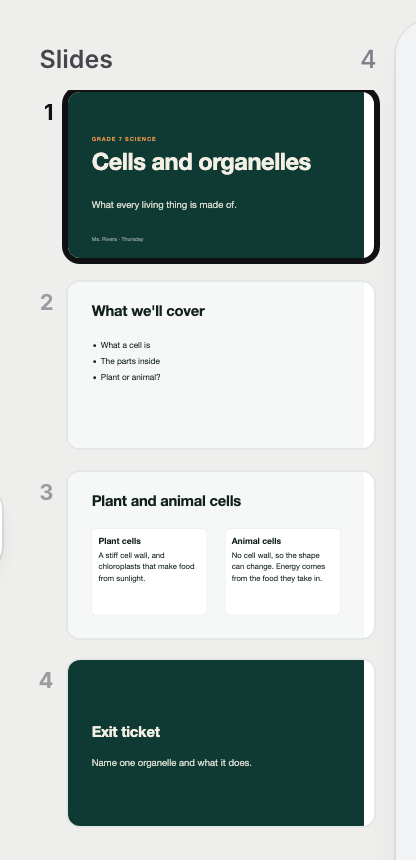
The slides, in order — drag one to move it.v2026-10-11 - Edit a slide like any page
Click a heading or a box to select it, and the top bar becomes its tools. A right-click opens Ask AI for just that box.
- Write what you will say in Speaker notes
The box under the slide. Only you see them.

Speaker notes — only you see them.v2026-10-11 - Change the look with Theme
테마, at the foot of the slide list, changes the colours and type of every slide at once.
- Press Present
발표하기 is at the foot of the slide list. The arrow keys move between slides, and Escape steps back out.
Present starts the show.v2026-10-11 - Need it in PowerPoint?
The arrow beside 게시 has PowerPoint로 내보내기 and PDF로 내보내기.
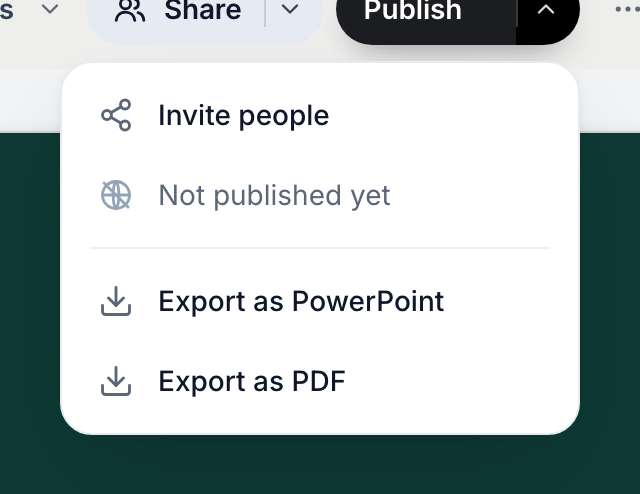
A deck exports to PDF or PowerPoint.v2026-10-11
A deck publishes and shares like any page, and exports to PowerPoint.