Preparing this in your language — reload in a moment.
Write a document
A document is one long piece of writing, like a word-processor file — split into tabs, so a unit plan and its reading list can live in one file.
- Press Create, then New Blank Doc
Name it and press సృష్టించు. Made at the top of your workspace, it gets a folder of its own; made inside a folder, it joins that folder.

New Blank Doc.v2026-10-11 - Click and type
There is no box to select first. The caret goes where you click, and the top bar becomes a writing bar: text style, font, size, bold, italic, colour, highlight, alignment and links.

While you write, the bar is for writing.v2026-10-11 - Use headings for the parts
Change సాధారణ టెక్స్ట్ to a heading at the start of each part. The panel on the left lists the headings under their tab — click one to jump there.
- Add a tab for each part
The same panel lists the document's tabs. ట్యాబ్ జోడించు starts a new one, and each tab's ⋮ renames or deletes it.
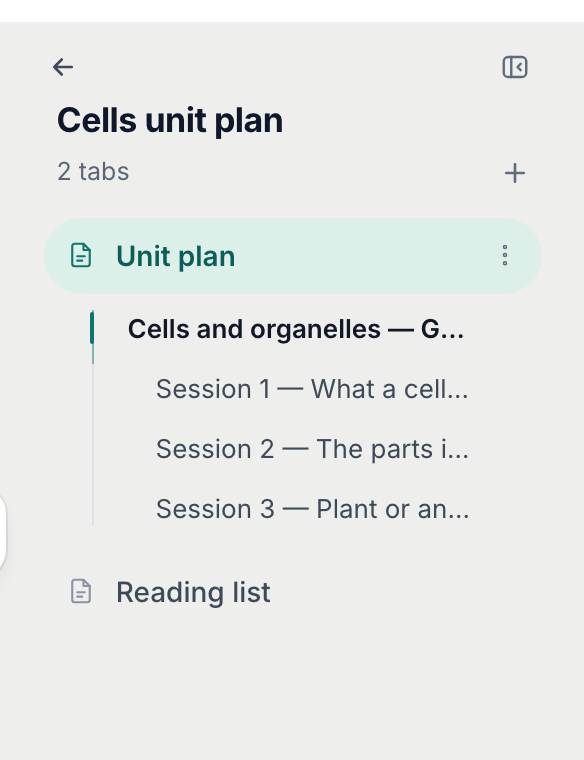
The tabs panel — each tab is a part of the document.v2026-10-11 - Press Done when you stop writing
పూర్తయింది gives the bar back: చొప్పించు, సాధనాలు, AIతో సవరించండి, సవరించు and ప్రివ్యూ, షేర్ చేయండి and ప్రచురించండి. సాధనాలు sets up the paper — pages or one long page, margins, line spacing.

A document's top bar.v2026-10-11 - Go back to Files with ←
The arrow at the top of the tabs panel goes back to the folder you came from. The button beside it hides the panel when you want the whole width.
← goes back to Files.v2026-10-11
A document publishes, shares and exports like any page, and the AI tools work on it too.