Preparing this in your language — reload in a moment.
Add smart blocks with @
In Duo Mode, @ is how you ask for anything more than text — a picture, a chart from your data, a video, a narration, a quiz, a form, a game. Type @ where it should go, and it lands right there.
- On a new line, type @
The menu opens under the line: Δημιουργία Smart blocks, the folder's Datasets, the doc's Συνδεδεμένες τιμές, and Ask @pageduo at the bottom for anything else.
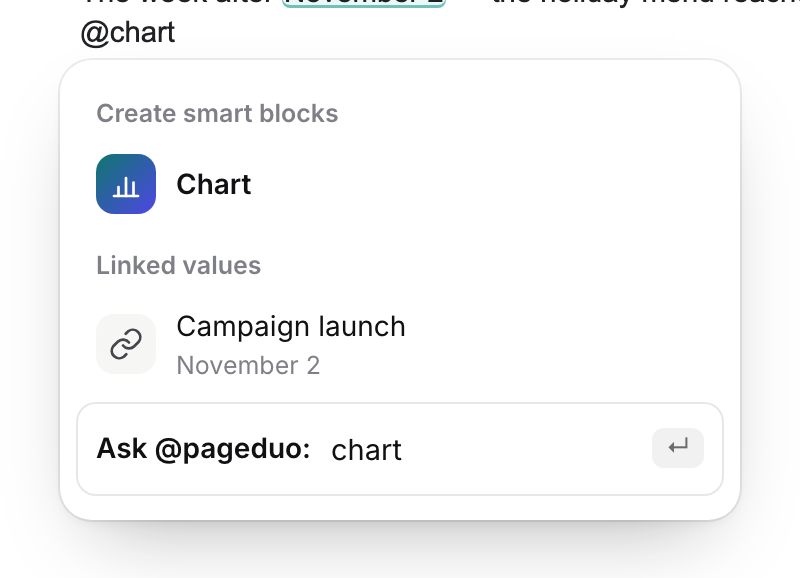
Type @ — then a word to narrow it.v2026-11-18 - Narrow it with a word, then press Enter
@image generates a picture, @video finds a video or makes an explainer, @audio records a narration, @chart and @table work from your data, and @quiz, @form and @game make something people can answer or play.
- Describe it on the card
A card opens where the block will go. Say what you want — "the green assembly-point sign on the courtyard wall" — and press the button on the card to make it.
- Or ask @pageduo in your own words
After Ask @pageduo, type what should be written there: "a four-step checklist for the evacuation". It is written right at that spot.
- Or let Duo offer it
As you write, Duo may suggest the block itself — "Add a quiz from this training" — and Tab adds it.
- Everything else is in Insert
Εισαγωγή, in the top bar, lists every block by group — Πιο συχνά χρησιμοποιούμενα, Πολυμέσα & γραφικά, Smart chips & σύμβολα and more — with a search box.
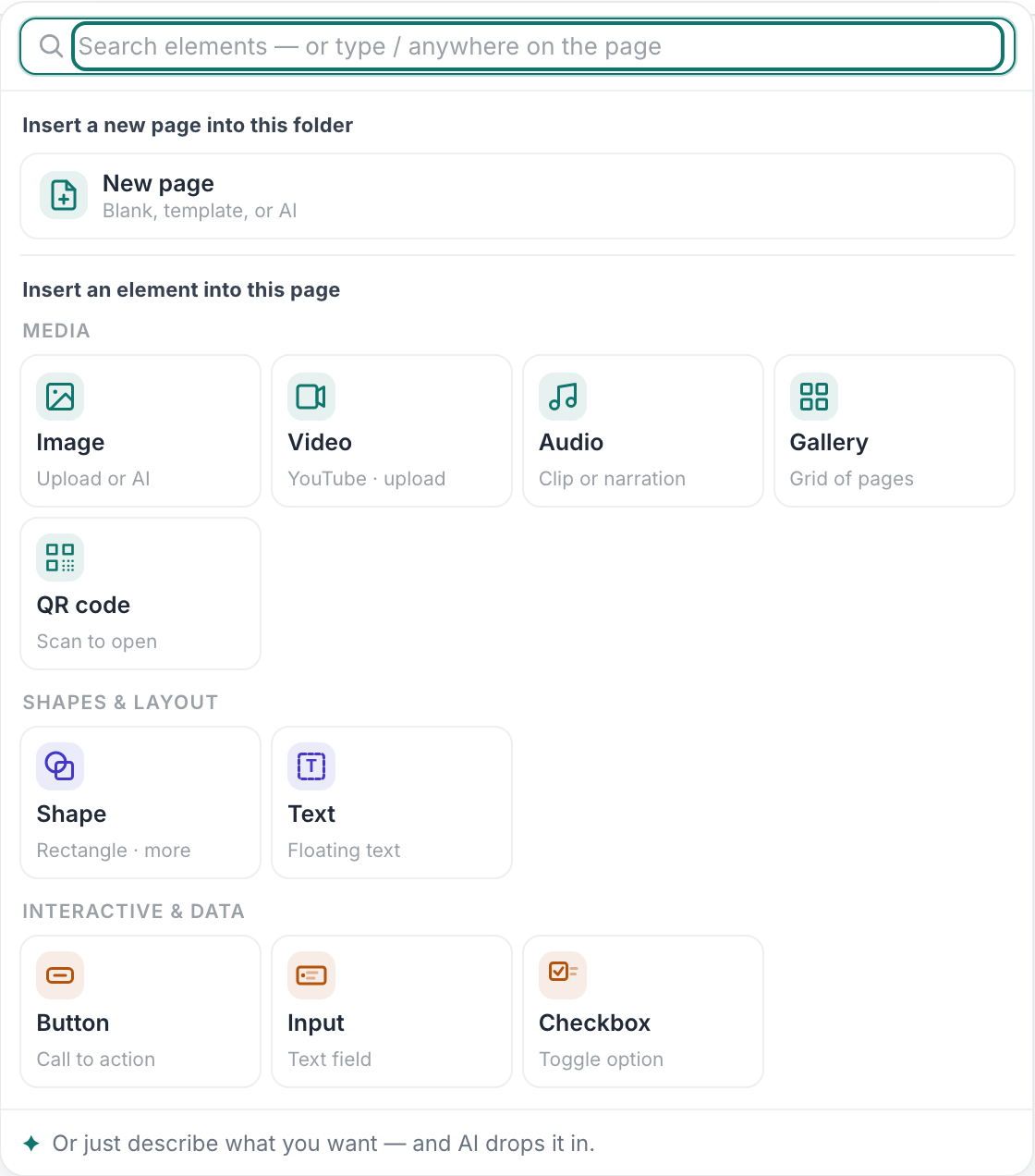
Every smart block, by group.v2026-11-18
Works on any doc or page, written by you or by PageDuo.