Preparing this in your language — reload in a moment.
Upload files to write from
Upload a file to a folder and PageDuo reads it. Duo Mode's suggestions in that folder draw on it, and charts can be made from it — so the figures come from your data, not from a guess.
- Open the folder, then Create ▸ Upload files
The Carica sheet names the folder under Salva in; Change picks another. The note under it says what PageDuo's AI does with what you add.
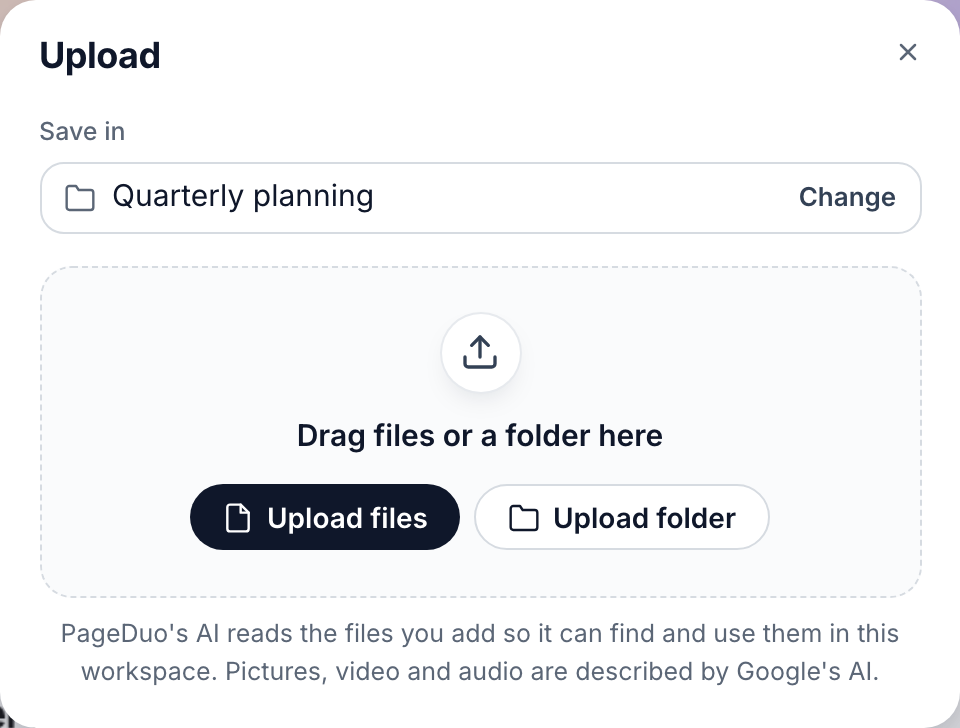
Upload — into the folder named under Save in.v2026-11-18 - Choose the file, then press Upload
It is listed in the folder within seconds, and a spreadsheet is ready as data a few seconds after that.
- Co-write in the same folder
From inside the folder, Crea ▸ Dynamic Doc. The grey suggestions now use your figures — "Q3 revenue totaled $390,000, rising from $120,000 in July to $142,000 in September" — and Tab keeps them.
- Find it under @
Type @ on a new line: the file is listed under Dataset, ready to become a chart.
- Check the numbers before you keep them
A suggestion is still a suggestion. Compare it with the file the first few times.
PDFs, Word files and notes work too. To turn a file into something new, see Create from a file.