Preparing this in your language — reload in a moment.
Export to PDF, PowerPoint or Word
The same work becomes a file you can print or edit elsewhere — PDF or Word from a page or a document, PowerPoint or PDF from a deck — and a QR code can go on every page so a printout still leads back to the live version.
- Open the menu beside Publish
The arrow on the right of प्रकाशित करा lists the exports for what is open. A page or document has PDF म्हणून निर्यात करा and MS Word म्हणून निर्यात करा.

The arrow beside Publish holds inviting and the exports.v2026-11-18 - Pick the format for what you are about to do
PDF for printing and handing out — it looks the same everywhere. Word when someone needs to edit the text in their own tools. On a deck, PowerPoint म्हणून निर्यात करा for presenting from PowerPoint.
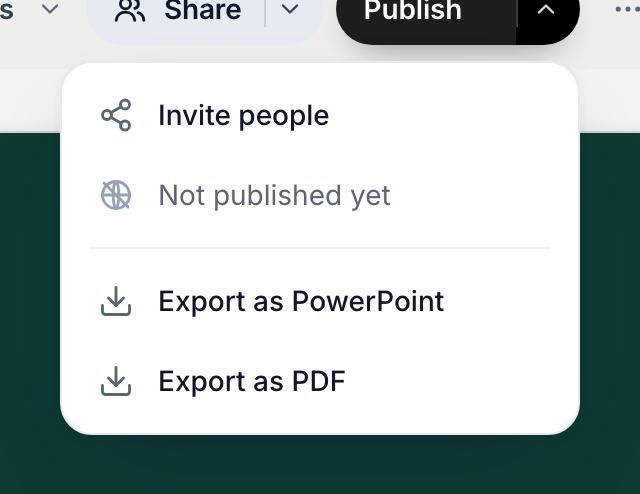
A deck exports to PDF or PowerPoint.v2026-11-18 - Say yes to the QR code
Before it renders, PageDuo asks whether to add a QR code to every page. A printed page cannot be clicked; the code takes a reader from paper back to the live version.
- Not published yet? You will be asked to publish first
The code has to point somewhere real, so publishing comes up before the export runs, then hands you straight back to it.
- Wait for it — the dialog tells you where it is up to
A page with many images takes longer. You can close the dialog; the download still finishes.
- Check one copy before you print twenty
Scan the code yourself once — that is the whole test.
Exports are on every plan and work on unpublished work too; only the QR needs a published link.