Preparing this in your language — reload in a moment.
Publish a page or a site
Publishing turns your page into a real web address you can hand out. Until you publish, everything you have made is private to your workspace.
- Press Publish
प्रकाशित करा is the black button at the right of the top bar.

Publish puts it online and hands you the link.v2026-11-18 - Check what is going live
वेबवर प्रकाशित करा says that this page goes live on its own. To put a whole folder online at once, use साइट प्रकाशित करा in the folder's ⋮ menu in Files.
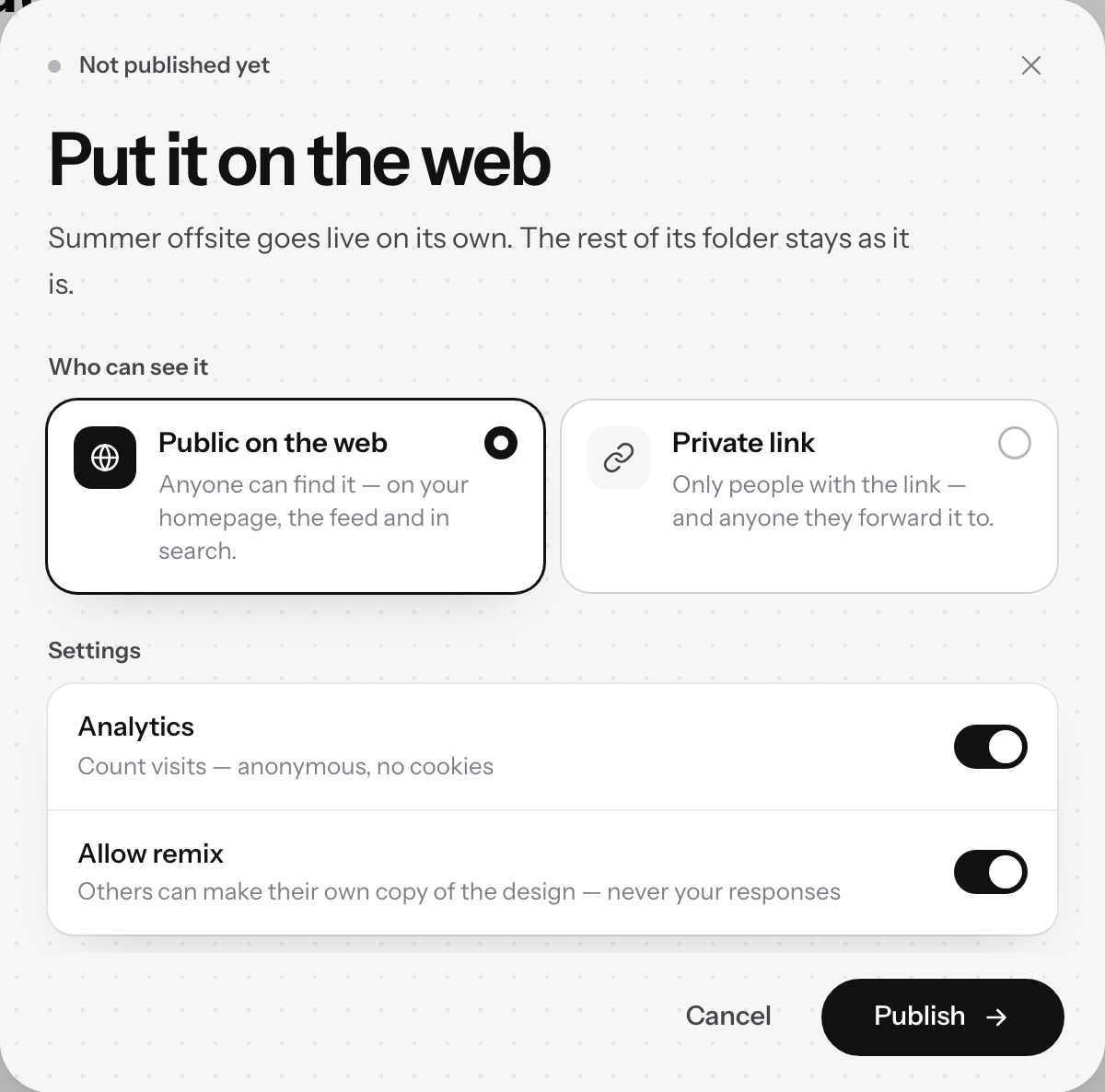
Put it on the web.v2026-11-18 - Choose who can see it
वेबवर सार्वजनिक, or खाजगी लिंक. The next page covers the difference, which matters more than it sounds.
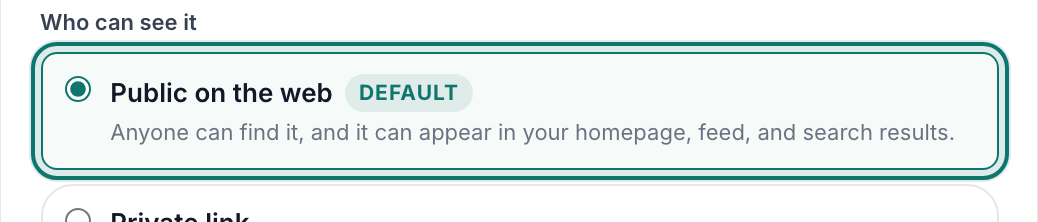
Who can see it — public, or a private link.v2026-11-18 - Leave the settings on, or switch one off
टिप्पण्या lets visitors leave notes in the margin, ॲनालिटिक्स counts visits without cookies, and रीमिक्सला परवानगी द्या lets others copy the design — never your responses.
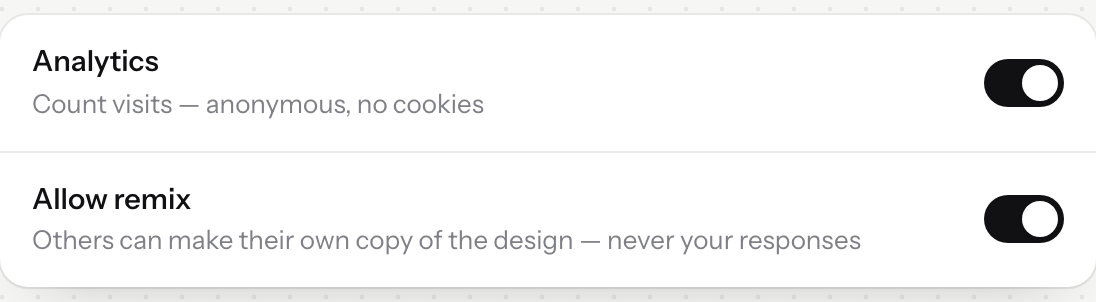
Comments, analytics and remixing — each one a switch.v2026-11-18 - Publish, and copy the link
That address goes in your message to the team, or on a poster in the break room. Later, प्रकाशित दुवा कॉपी करा is in the menu beside प्रकाशित करा.
- Edited something? Publish again
Changes do not go live on their own. Press प्रकाशित करा again: the dialog reads लाइव्ह असलेले अपडेट करा, and साइट अद्यतनित करा replaces the published copy.
Publishing again after an edit is the same button — it updates what is live.