Preparing this in your language — reload in a moment.
Publish a page or a site
Publishing turns your page into a real web address you can hand out. Until you publish, everything you have made is private to your workspace.
- Press Publish
Xuất bản is the black button at the right of the top bar.

Publish puts it online and hands you the link.v2026-11-18 - Check what is going live
Đưa lên web says that this page goes live on its own. To put a whole folder online at once, use Xuất bản trang web in the folder's ⋮ menu in Files.
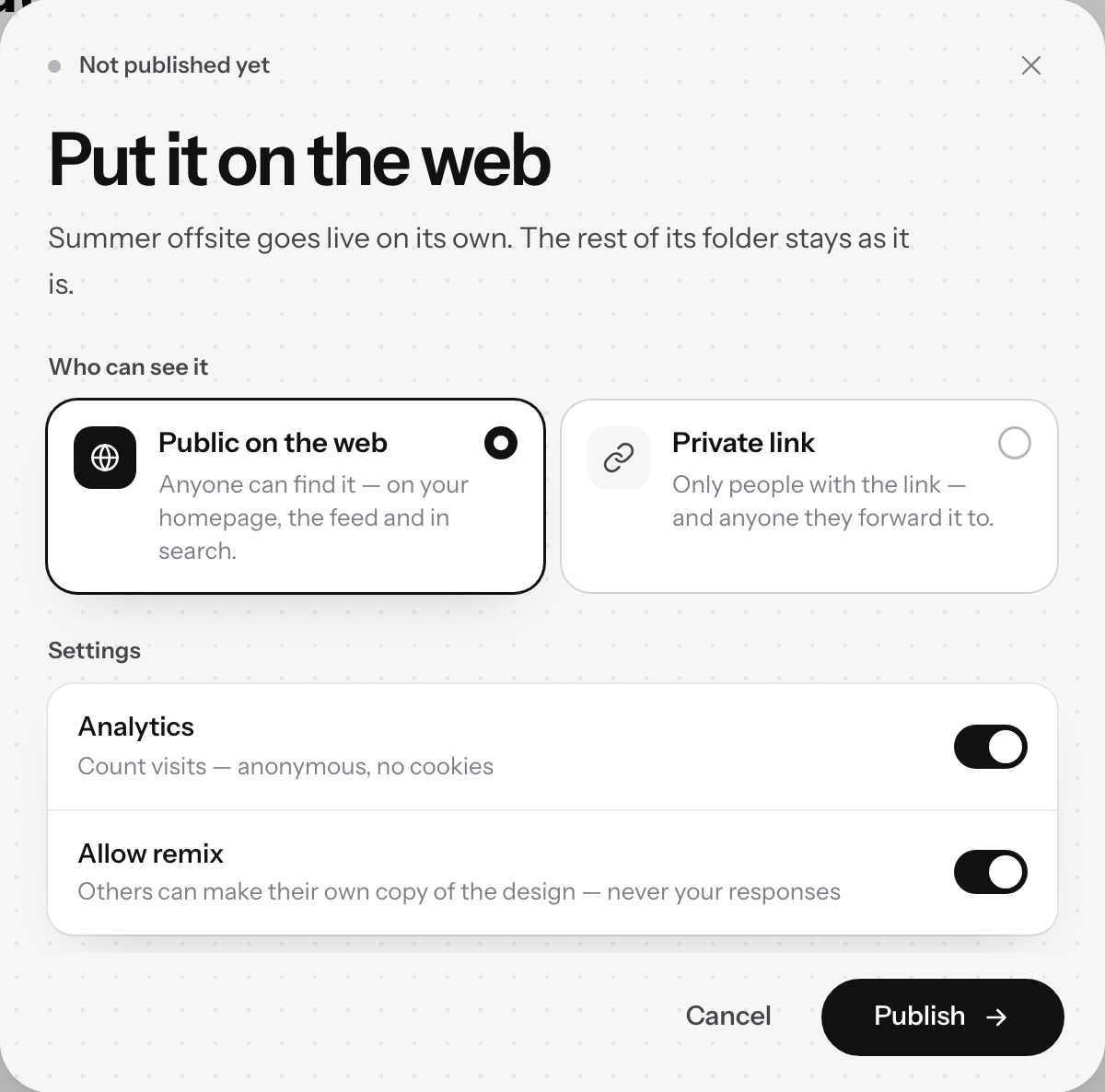
Put it on the web.v2026-11-18 - Choose who can see it
Công khai trên web, or Liên kết riêng. The next page covers the difference, which matters more than it sounds.
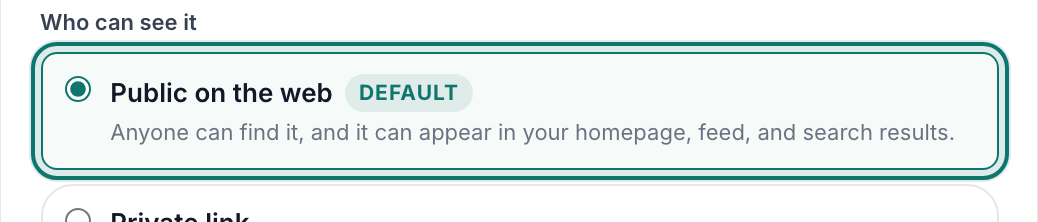
Who can see it — public, or a private link.v2026-11-18 - Leave the settings on, or switch one off
Bình luận lets visitors leave notes in the margin, Thống kê counts visits without cookies, and Cho phép phối lại lets others copy the design — never your responses.
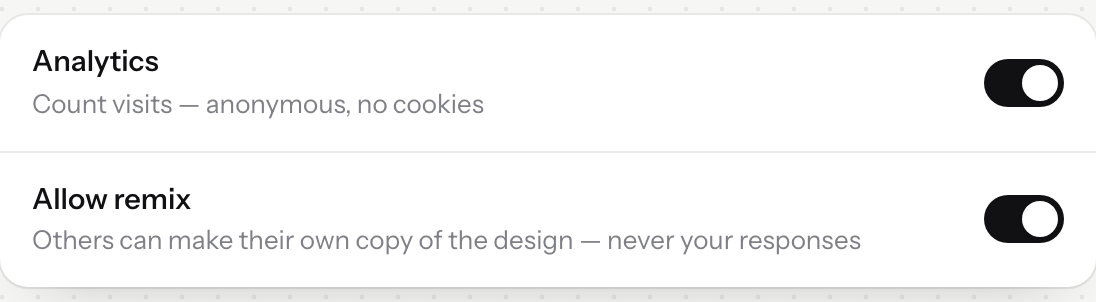
Comments, analytics and remixing — each one a switch.v2026-11-18 - Publish, and copy the link
That address goes in your message to the team, or on a poster in the break room. Later, Sao chép liên kết đã xuất bản is in the menu beside Xuất bản.
- Edited something? Publish again
Changes do not go live on their own. Press Xuất bản again: the dialog reads Cập nhật bản đang hoạt động, and Cập nhật trang web replaces the published copy.
Publishing again after an edit is the same button — it updates what is live.