Preparing this in your language — reload in a moment.
Share it with people
Publishing is for readers. Sharing is for people who will open your work inside PageDuo — to read it, comment on it, or edit it with you — without joining your whole workspace.
- Press Share
Compartir sits beside Publicar in the top bar.

Share — for people who will work on it with you.v2026-10-11 - Choose the folder, or only this page
The link opens the whole folder unless you say otherwise. Compartir solo esta página narrows it to the page in front of you.
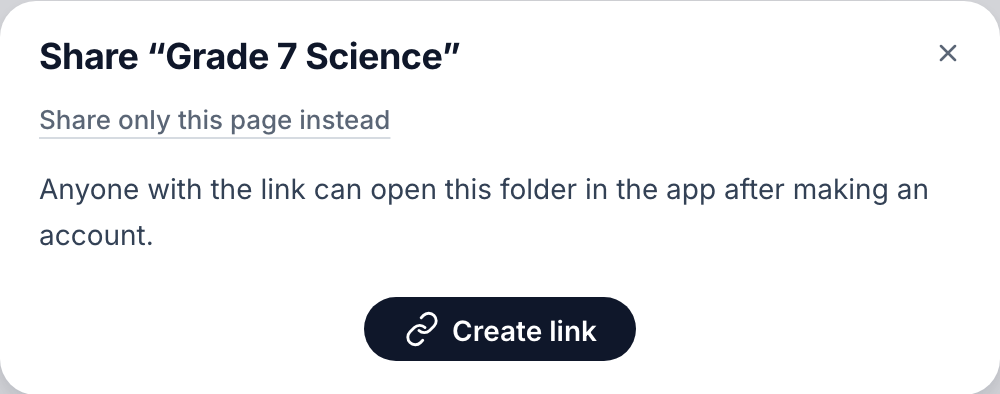
Share the folder, or only this page.v2026-10-11 - Press Create link
Anyone who has the link can open it after making a free account.
- Choose what they can do
Ver lets them look and comment; Editar lets them change it too. The line underneath says exactly what the choice allows.

Choose what people can do with it.v2026-10-11 - Copy it, or send it from here
Copiar enlace puts it on your clipboard. Enviar el enlace a emails it for you.
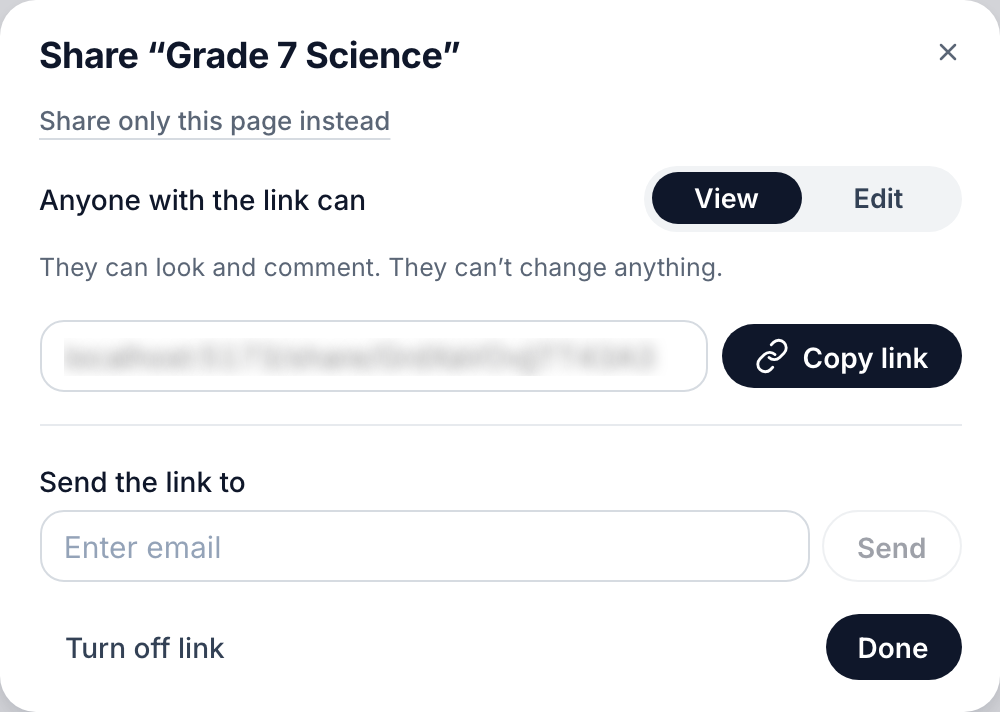
The link, its role, and a box to email it.v2026-10-11 - Turn it off when you are done
Desactivar enlace stops the link working for everyone who has it.
To give someone everything in a workspace instead, see Invite people, or join one.