Preparing this in your language — reload in a moment.
Edit a video and its narration
A video explainer opens in a studio: the scene playing, every scene in a row underneath, and a panel for what you have picked. Every word stays editable, and a changed line is re-recorded in the same voice.
- Open the video
It opens in Rediger: the scene on the stage, the scenes in a row underneath with their lengths, and Your video beside them.
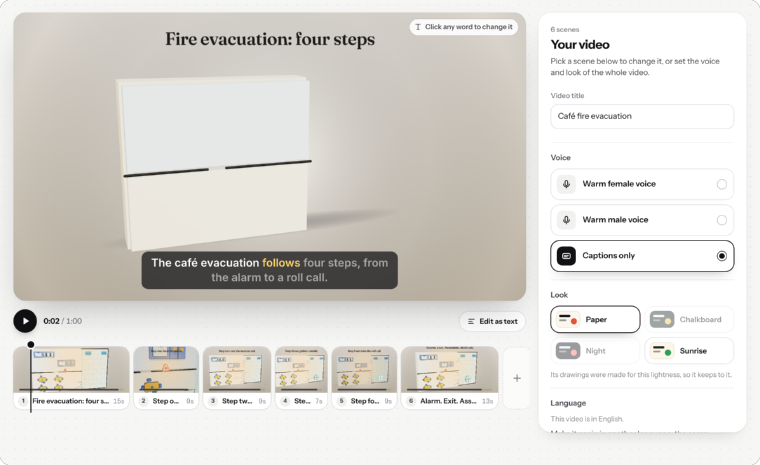
The studio — the stage, the scenes, and Your video.v2026-11-18 - Click any word on the stage to change it
Titles, labels and captions are text — click and type.
- Pick a scene to change more of it
Its panel has What the captions say (or what the voice says), the title and label on screen, the picture's layout and how the scene comes in.
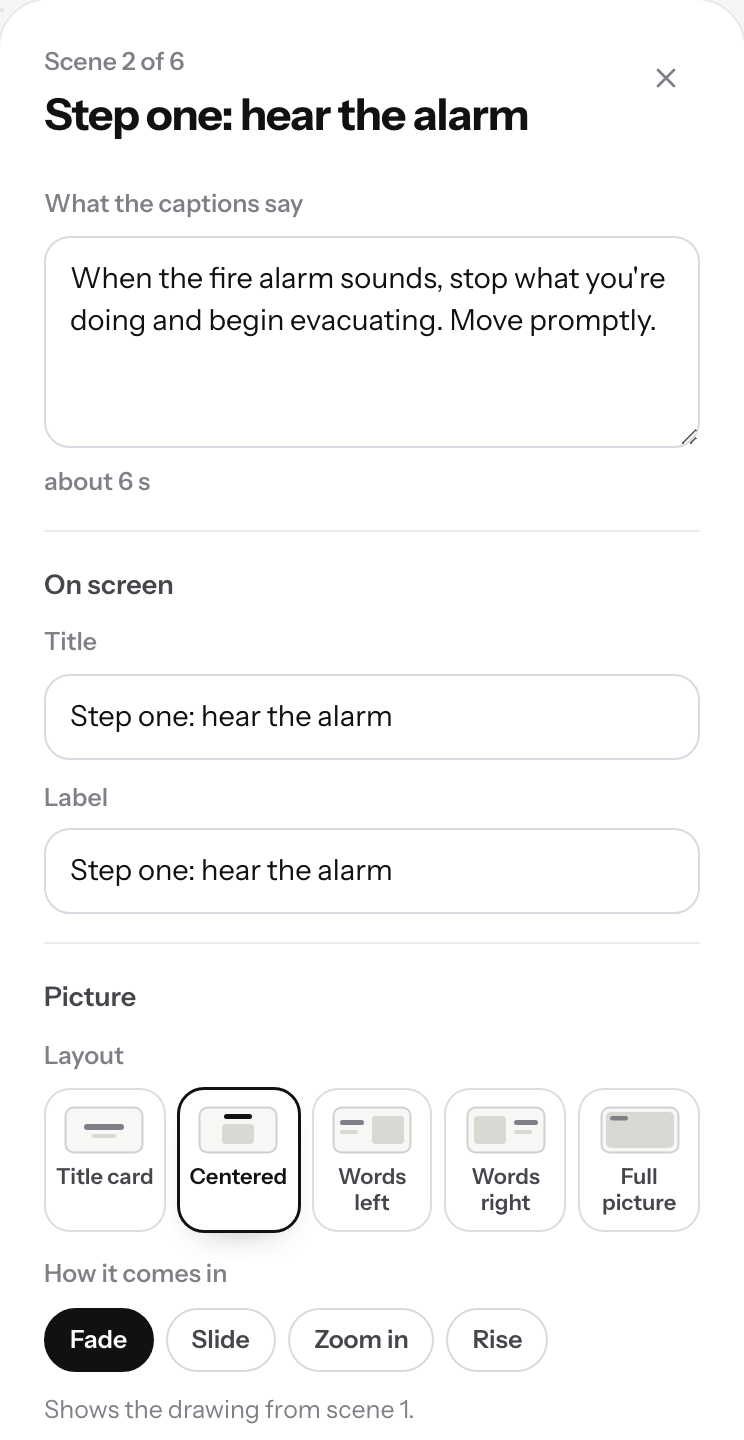
One scene's words, picture and entrance.v2026-11-18 - Or change all the words at once
Edit as text lays the whole script out as one piece of writing.
- Set the voice and the look for the whole video
In Your video: the title, the voice — a warm female voice, a warm male voice or captions only — and the look, such as Paper or Chalkboard.
- Press Play to hear it
Afspil re-records every line you changed, in the same voice, then plays the video. Out of AI allowance? The changed line plays as captions, and PageDuo tells you why.
Changes save as you go, as they do on every page.