Preparing this in your language — reload in a moment.
Export a video, or put it in a page
A video explainer plays in PageDuo as it is. To send it anywhere else, export it as an MP4; to show it inside a doc, insert it there.
- Press Export
Exporta is in the video's top bar, after Reprodueix. On a narrower window it shrinks to its icon, an arrow leaving a tray.

Export makes an MP4.v2026-11-18 - Choose the shape
Horitzontal (16:9) for screens and slides, Vertical (9:16) for phones and stories. Subtítols al vídeo writes the words into the picture — handy where the sound is off.
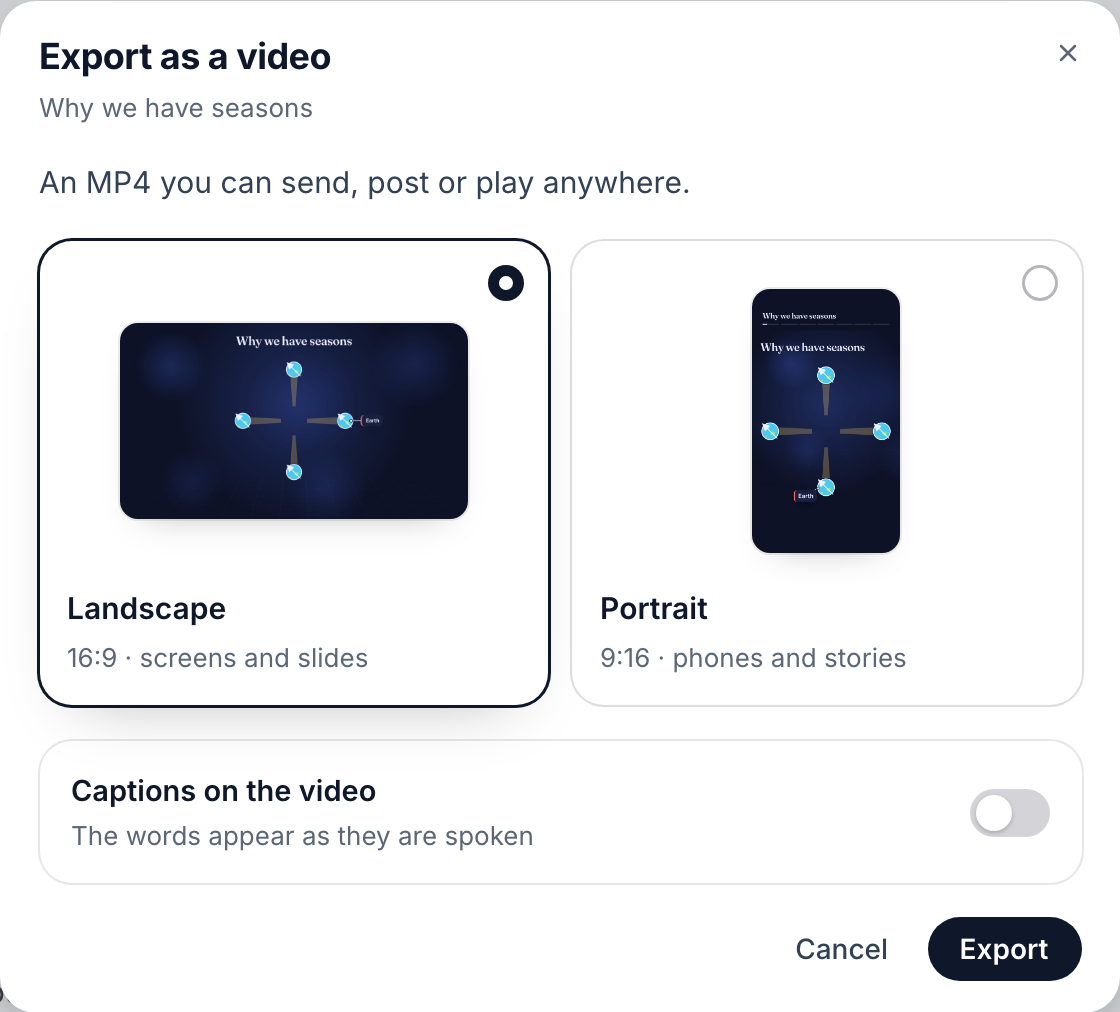
Landscape or Portrait, captions on or off.v2026-11-18 - Press Export, then wait for the download
The sheet shows how long is left while it renders, then downloads the MP4.
- To put it in a doc, use Insert, or type @video
Open the doc, then Insereix ▸ Video explainer. Pick one of your videos, or make one about what you selected, and it lands where you were writing.

Insert ▸ Video explainer puts one of your videos in a doc.v2026-11-18 - Changed the video since?
Select it in the page and press Actualitza el vídeo to bring in the new version.
- Publish or share it like a page
Publica puts the video on the web with its narration; Comparteix invites people to work on it with you.
Publishing and sharing a video work exactly as they do for a page — see Publish a page or a site.