Preparing this in your language — reload in a moment.
Invite people, or join one
Two ways in — email an invitation, or hand out a link that lets anyone who has it join without waiting for you.
- Open the workspace menu and choose Invite people
Click the workspace tile at the top of the strip. Inviter personer is near the top of the menu.

Invite people is in the workspace menu.v2026-11-18 - Two ways in, in one dialog
A link to hand out, and an email invitation. The link is first because it is the common case.
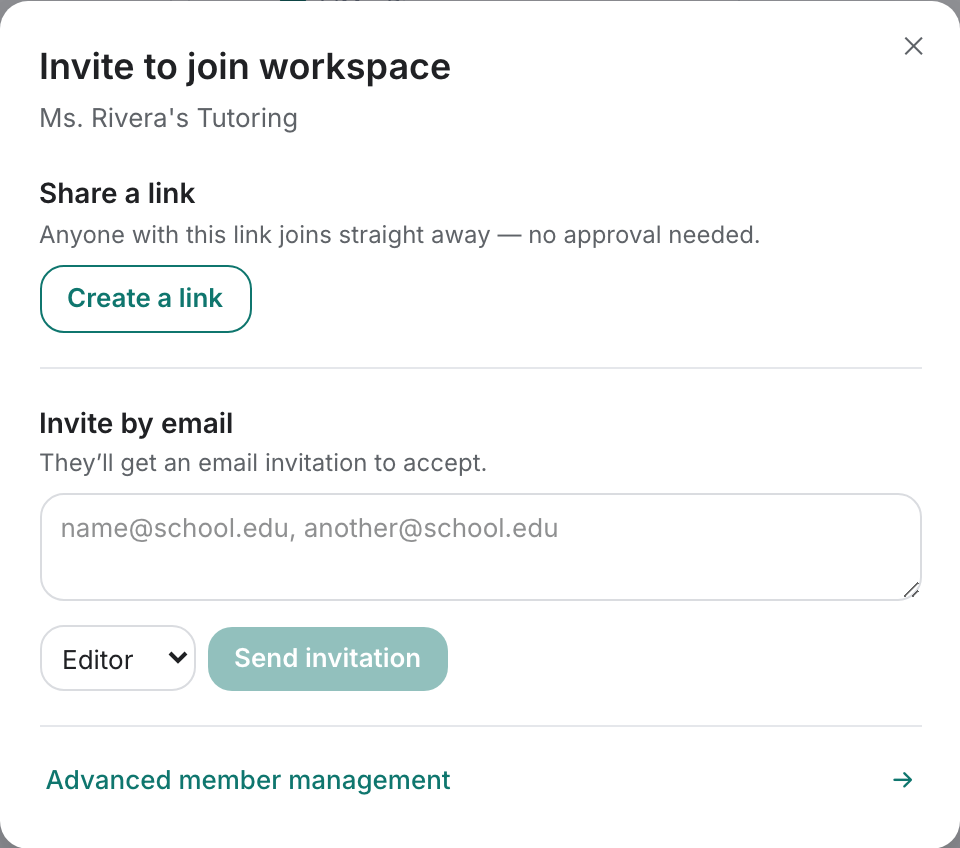
Invite — a link first, email underneath.v2026-11-18 - To hand out a link, press Create a link
Opret et link makes one. Good for a message to a group, or a QR code on the staff noticeboard.

Create a link mints the join link.v2026-11-18 - Read the line above the link before you send it
It says whether anyone who opens it joins straight away, or waits for your approval. Lad dem tilmelde sig med det samme removes the wait. Deaktivér cancels the link — and every copy already handed out.
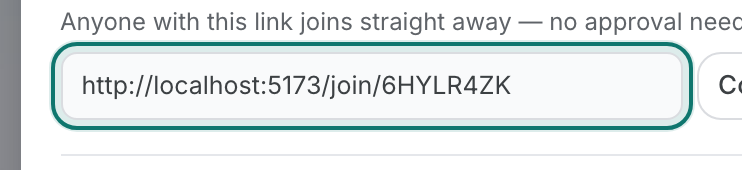
The link, ready to copy — the line above says whether it needs your approval.v2026-11-18 - To invite by email, type the addresses
Several at once is fine — comma, semicolon, or one per line. Each person gets an email to accept.
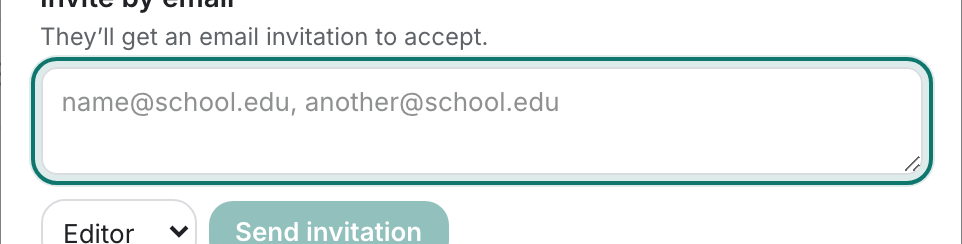
Several addresses at once is fine — comma, semicolon, or one per line.v2026-11-18 - Choose the role before you send
Redaktør can change pages, Seer can only read, Administrator can also manage members. Pick Viewer for anyone who only needs to read.

Set the role before you send.v2026-11-18 - Need to remove someone later?
Avanceret medlemsstyring at the bottom opens the full member list, where roles change and access is removed.

Advanced member management opens the full member list.v2026-11-18 - Been invited instead? Join from your own menu
Tilslut et eksisterende workspace, in the same workspace menu, takes the code or link you were sent.

Join an existing workspace — for when you have been sent a code.v2026-11-18
Been sent a link? Open it and press Join — the rest of this page is for the person doing the inviting.